Oxford University Press · Education technology
Helping teachers use eBooks in class
When schools in Hong Kong moved from DVDs to Oxford iSolution, some teachers had to wait for an eBook to load in front of the class. As a Senior Account Executive at Oxford University Press (OUP), I found out where teachers were getting stuck, helped them set up eBooks for use across classrooms and shared recurring problems with the product team.
Role
Senior Account Executive, Oxford University Press, Hong Kong
Focus
School visits, teacher feedback and product support
Time at OUP
2015 – 2021
Overview
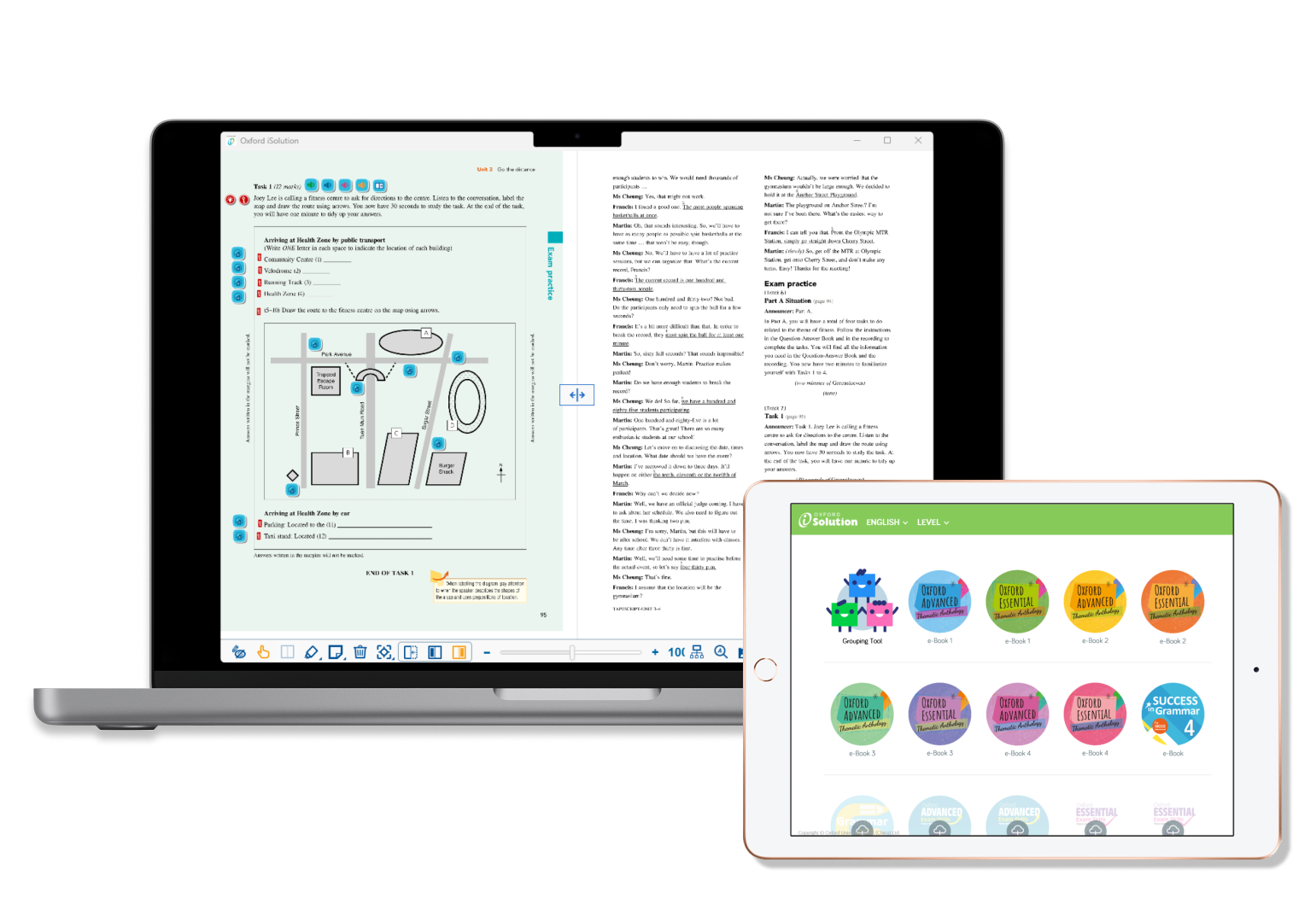
Oxford iSolution brought eBooks and other teaching materials together in one app. The move saved Oxford the cost of producing discs. It also meant Oxford could publish eBooks one chapter at a time and make corrections to individual pages.
Teachers had been used to opening materials from DVDs without going online for decades. With the desktop app, teachers had to sign in each time they opened the app. The first time they opened an eBook on a particular computer, they also had to download it. When they moved to another classroom, they might have to download the same eBook again. Some schools reset their computers after shutdown, which meant teachers had to download the eBooks again.
I visited schools to introduce the app and provide after-sales service. When teachers had problems, I showed them what they could do and took recurring issues back to colleagues who worked on the app.
The challenge
Teachers needed to get to the right page quickly and use the tools they needed without stopping the lesson. Some teachers told me it was harder to keep their students’ attention while they waited for an eBook to load. Once it was on screen, they still needed to zoom in, move across the page or highlight a passage while teaching.
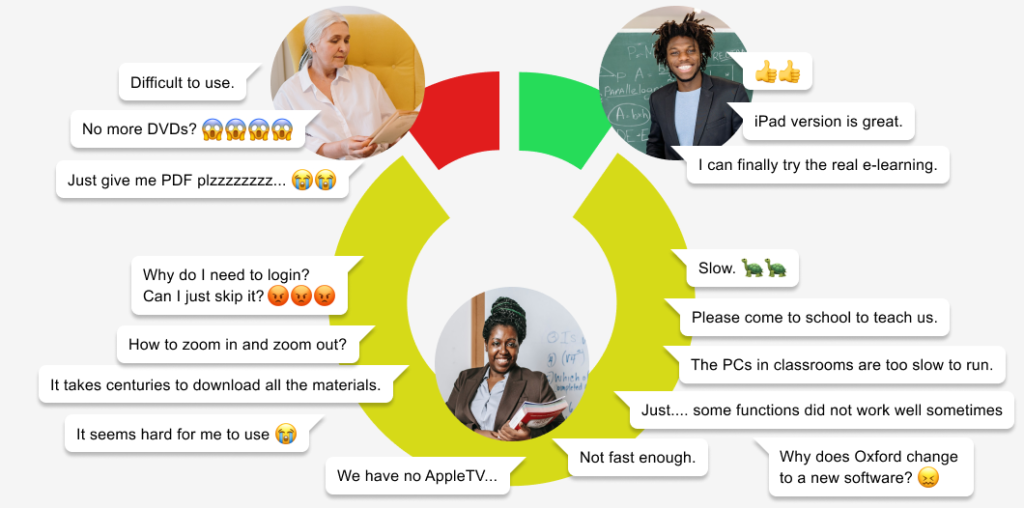
“If the app takes so much time, the class may out of control.”
What I did
1. Finding out where teachers got stuck
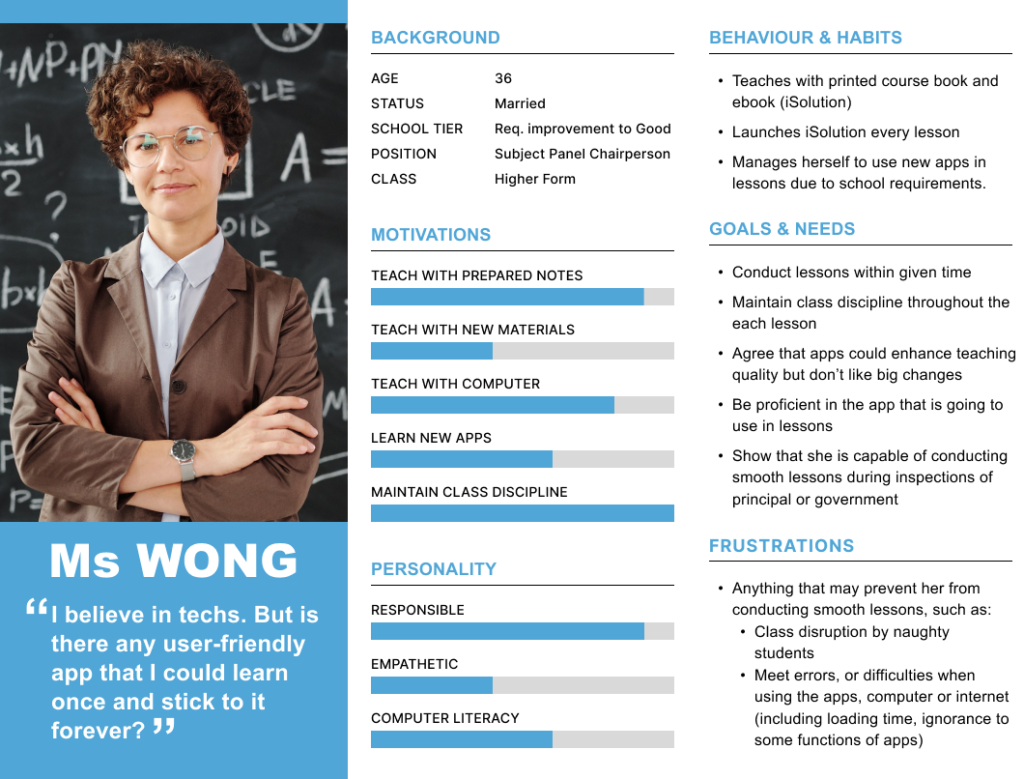
During school visits, I asked teachers to show me what they were trying to do on their usual computers. I compared what I saw with what teachers told us in calls, emails and meetings. I grouped similar reports in Excel and used meetings to show colleagues the steps that caused problems.
1. Signing in. While the sign-in requirement helped protect teaching materials such as worksheets and answer files, some teachers had trouble remembering their login details. Others said signing in every time took up lesson time.
“I feel nervous when I have to check the login details when I forget them.”
“Every second counts, it just takes extra time to go through the login progress.”
2. Opening an eBook. Signing in could be slow, and downloading an eBook could take even longer. Some schools ran the app from a shared server, so loading also depended on the connection between the classroom computer and the server.
“The app is slow. Too many loadings. Annoying.”
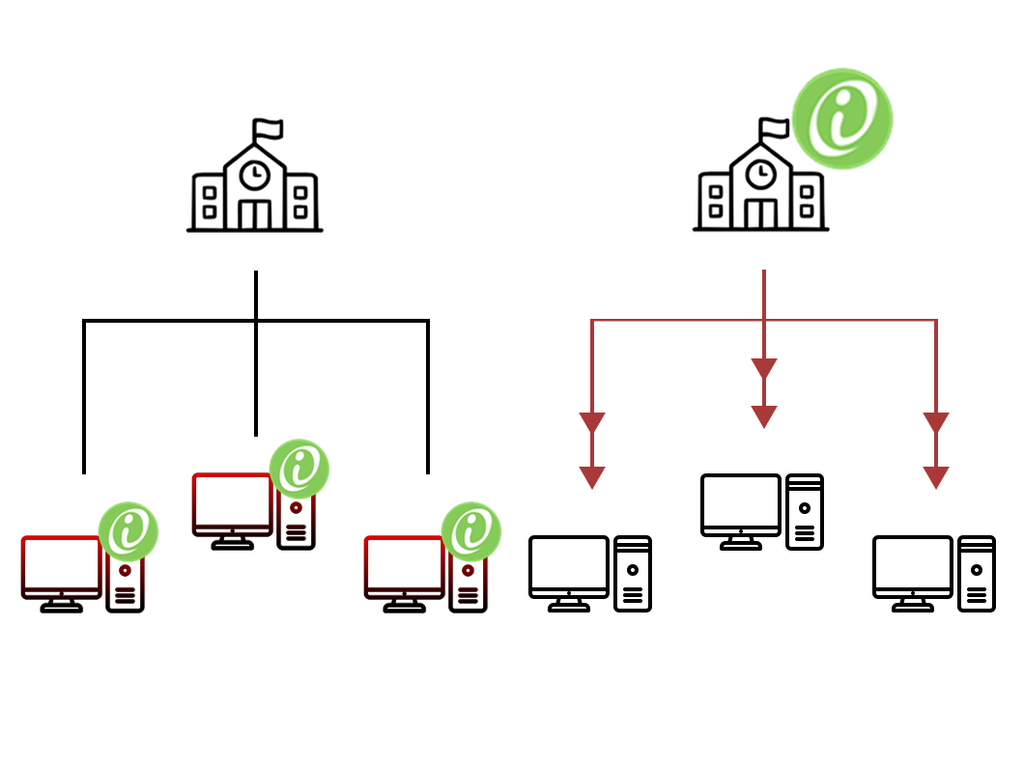
Left: on each classroom computer. Right: on a shared school server.
3. Using the toolbar. Some teachers did not realise they could zoom in. Others could not find the horizontal scrollbar or accidentally marked the page because the highlight tool was still on.
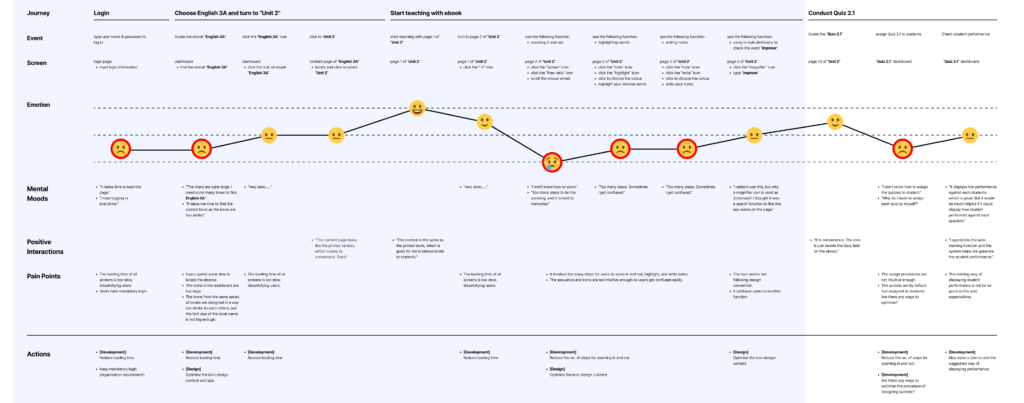
How teachers got an eBook on screen
I put together this map to show a typical route based on what I saw and heard from teachers. It follows the steps from signing in to opening the eBook. Once it was on screen, teachers used the toolbar to move around the page and show the class the part they needed.
2. Helping teachers use eBooks offline
a. Working back from the start of a lesson
Some teachers asked for PDFs.
“Just give me the PDF please.”
I worked back from the moment a teacher needed to put a page on screen. The eBook had to be ready to open in any classroom, without a sign-in or download during the lesson.
A PDF would have been easy to open in class. OUP kept the eBooks in the app to prevent unauthorised printing.
How could I make the eBook ready to open while keeping it inside the app?
b. Breaking the problem down
| Problem or constraint | My approach |
|---|---|
| OUP needed to protect the teaching materials. | PDF was not a choice. I had to keep the eBooks in Oxford iSolution. |
| Signing in and downloading took time. Teachers had to sign in each time and download each eBook the first time they used it on classroom computers. | I suggested downloading the eBook before the lesson. Once it was on the drive, teachers could open it in Offline Mode without signing in or connecting to the internet. |
| Offline Mode tied the account to one computer. Teachers had to go back to that computer to turn the mode off. Students could access the eBooks if the mode was left on. | I considered putting the app and the eBooks on a USB stick. Teachers could carry the setup to the next classroom and unplug it at the end of the lesson. |
| The app still needed time to open from a USB stick. | I tried a portable hard drive as a faster option. It made sense for teachers who wanted faster loading and were willing to pay for a drive. |
| Offline Mode could open a eBook already on the drive but could not download it. Some teachers preferred help getting the eBooks ready. | I copied the downloaded eBook files to the drive and offered to do the copying for teachers who wanted help. |
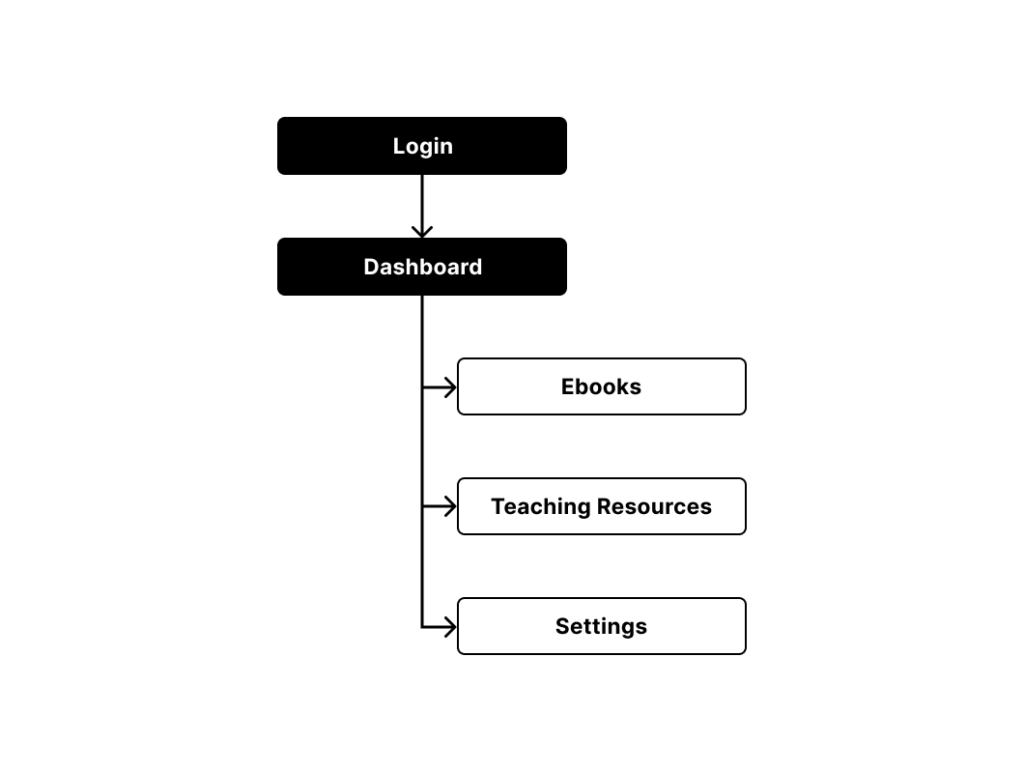
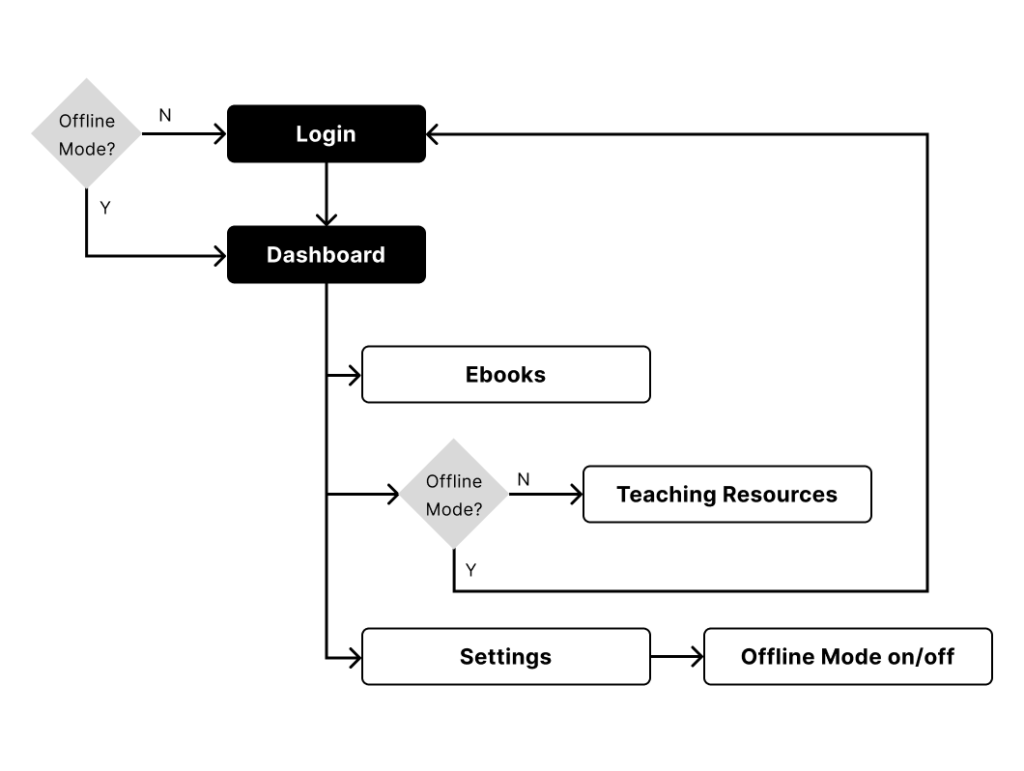
c. The decision that made the setup portable
Once I saw that Offline Mode worked for a teacher who stayed in one room, I asked what would need to move when the teacher changed rooms. The same prepared copy of the app and its eBooks could go with them. I tried running the offline setup from a portable hard drive, so teachers could plug it into the next classroom computer and open the eBook they had already prepared. The work moved to before the lesson and only needed to be done once for each eBook on the drive.

How teachers prepared an eBook for class
- Get the Oxford iSolution ready. Sign in to the app, switch to Offline mode. Copy the app’s installation folder to the portable hard drive.
- Copy the eBooks. Copy the eBooks to the app’s corresponding eBook folders in the portable hard drive.
- Open the eBook in class. Plug the drive into the classroom computer and open the eBook in Offline Mode.
d. What teachers told me after a week
I followed up about a week after showing teachers how to use the portable drive. Everyone I spoke to said the setup was an improvement. Most still found it slow, but said it ran smoothly enough to use in class. A few wanted it to run more smoothly.
3. Showing teachers how to use the toolbar
I made short videos showing teachers how to zoom in, highlight text and add notes. Teachers could watch the steps again when they needed a reminder or share the videos with colleagues.
4. Sharing teachers’ problems with the product team
Zoom
I compared the problems I had seen with what colleagues were hearing from other schools. Through my manager, I passed on screenshots and details about the school computers. I explained what teachers were trying to do, where they got stuck and which problems I thought needed attention.
For example, teachers had to open a menu and click a second icon to zoom. Some had seen me zoom during a demonstration and still could not find the control on their own.
“I don’t even know there was a zooming function!”
“I saw you could zoom last time, but I can’t make it myself…”
I suggested using a clearer icon in the short term and adding a slider in the longer term so teachers could adjust the zoom directly.

Horizontal Scrollbar
We also suggested moving the horizontal scrollbar above the toolbar and making it clearer when the highlight tool was on. Teachers could then see how to move across the page and avoid marking it by mistake.
The sales and product teams agreed to give priority to faster sign-in and downloads, and to features teachers could use directly in lessons, such as revealing answers one question at a time. I continued to show teachers how to use the existing toolbar in the meantime.

What changed
Signing in
Later versions made it quicker to sign in and download eBooks.
Using the toolbar
After I left OUP, the product team added a zoom slider and moved the horizontal scrollbar above the toolbar, as we had suggested. A former colleague shared this screenshot of the updated app with me.

What I learned
How well a feature works can depend on where and how people use it. Offline Mode made it easier to open a eBook again, but tying it to a shared computer caused problems for teachers who moved between classrooms. Trying it on a portable drive gave me a way to use the same feature in a setup that suited those teachers.
NEXT CASE STUDY
Making an IKEA RÅSKOG work as a clothes rack →
I designed and 3D-printed custom adapters so I could turn an IKEA RÅSKOG trolley into a clothes rack using aluminium tubes I could find in the UK.